MouseKit - a cursor and presentation tool that works all day
Picture this: you're at your computer all day, every now and then you hop on a video call, sometimes you put together a presentation, maybe you even sketch something on screen to explain an idea to a colleague, on a shared screen or during an online meeting. For each of those moments you probably reach for a different tool, or just make do, and the moment the call ends, you close it again until you need it next.
MouseKit starts from a different idea: what if your cursor didn't only need to be useful in those specific moments, but all the time you're working?
That's why the only feature that's always on the moment you launch the app is Guardian, protecting you from a sleeping mouse. It quietly runs in the background and keeps you from making an accidental click when you come back to your desk after a break and your mouse is still in sleep mode, or when you lose track of where your cursor actually is on a large or multi-monitor screen. You don't need to turn it on before a presentation and off afterward, it's there all day, every day, and for anything else, one click on the Profile you want is enough (instantly switches to a saved set of settings for a specific purpose).
On top of that come the rest of the features, whenever you need them: a trail that shows your cursor's movement, the Indicator for better visibility, on-screen drawing for a quick sketch, all the way to professional tools for real presentations and online teaching, when you need something more serious. All in one place, instead of switching apps depending on what you're doing at the moment.
MouseKit comes in three versions, built for different needs:
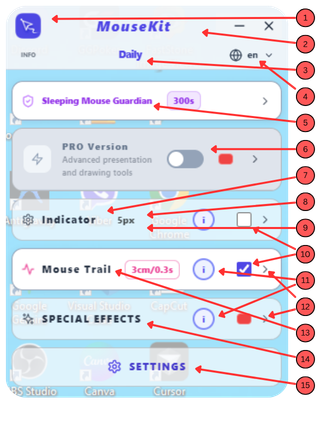
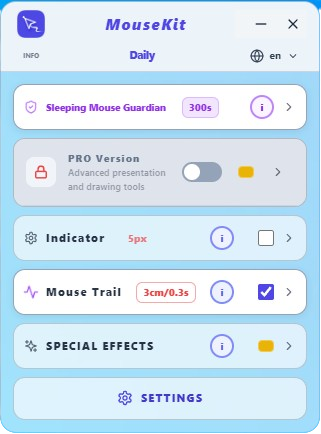
Free Standard, which is also free, is focused on everyday work: the Sleeping Mouse Guardian, better cursor visibility (a colored ball instead of the cursor, plus pulsing), the Mouse Trail, and the option to doodle on screen now and then. Ideal if what you mainly need is a safer, more visible cursor throughout the day. You can already see it in action on our Coming Soon page 😊 Learn more → MouseKit Free Standard - a free tool for a safer, more visible cursor
Standard Plus keeps everything from Free Standard and adds bonus tools: an arrow and a rectangle for highlighting elements, the ability to type text on screen, quick screen capture, and Spotlight, which dims everything except what you're currently pointing at. It also adds the Ultimate Shortcut, letting you briefly click through to what's underneath, even while features that normally block clicks to other apps are active. A good fit if you prepare online presentations, courses, or classes in advance. Learn more → MouseKit Standard Plus - a tool for teachers and online course prep
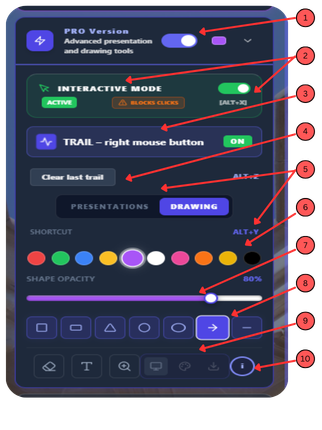
PRO unlocks the full professional toolkit: Interactive Mode with dedicated Presentation and Drawing modes, every shape (arrow, circle, ellipse, rectangle...) and tool (eraser, text, magnifier, drawing canvas), a timer, keystroke display, and a Contextual bar with every tool within reach, plus significantly larger trail parameters. Built for teachers, presenters, and anyone who regularly works in front of an audience, live or online. Learn more → MouseKit PRO - a professional tool for teachers and presenters
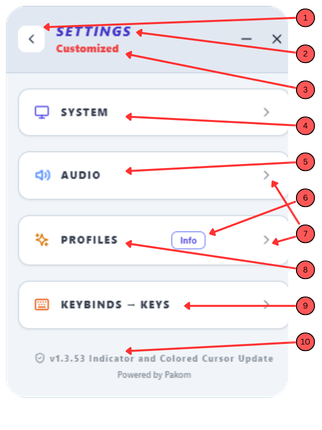
All three versions come with a Settings panel, where you set global app options and, especially useful, Profiles: saved combinations of settings for a specific purpose (everyday work, presentations, drawing...) that you activate with a single click, without resetting every switch by hand. Learn more → MouseKit Settings and Profiles - customize the app to your workflow
MouseKit has been available to everyone since September 9, 2026, because:
- the app is fully finished and can be downloaded and used right away on Windows, while Mac and Linux versions are coming in later development phases, unless Microsoft scoops up the app in the meantime 😎
- the Demo period is currently underway, during which you can get MouseKit at a lower introductory price, and it won't last long, so grab the chance while you can 😉
- the Free Standard version always stays free, while Standard Plus, PRO, and family/team plans come at lower prices while the Demo period lasts.
If you want to see all the plans and try the app, visit:
- mousekit.app - our commercial site, with more details, panel screenshots, and a full demo video showing almost the entire app in action
- youtube.com/@mousekitapp - our YouTube channel with demo videos and the app's tongue-in-cheek anthem, Holy Mouse 😂
- docs.mousekit.app - our user guide (page in progress, already-finished sections are live while we complete the rest)
- linkedin.com/in/srdjan-pavlovic-a4492a385 - the founder's LinkedIn profile
- x.com/SrkiMouseKit - follow us there too